Here is your step-by-step guide on how to export your user data and what to do if your browser gets a little too protective during the download.
- Step 1: Create an export request
There are two quick ways to trigger a data export from your SaveDay dashboard:
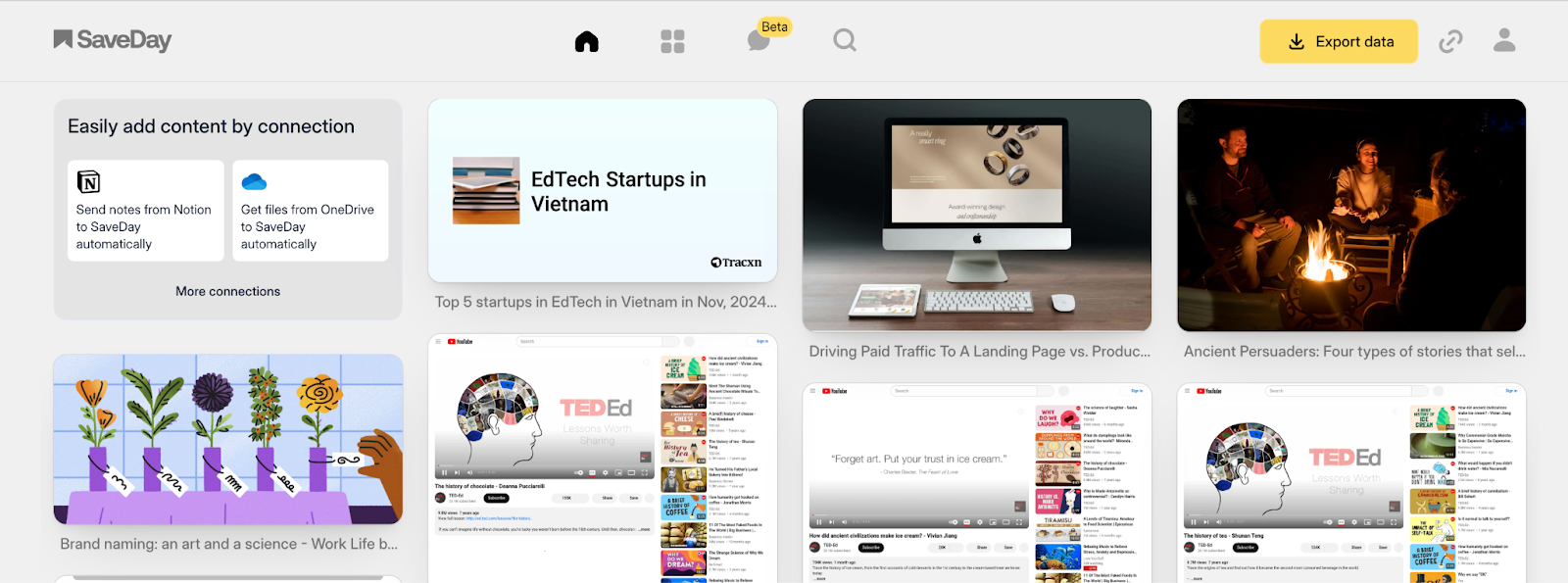
1. From the Header
The fastest way to start is by clicking the "Export data" button located directly in the top header of your workspace.
2. From the Exports Page
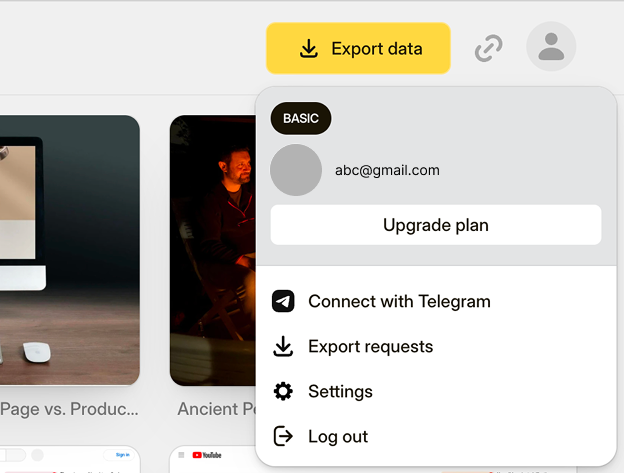
If you want a more detailed view of your history, navigate to the “Export requests” section via the your “Account and more options” button. This will take you to the /exports page.
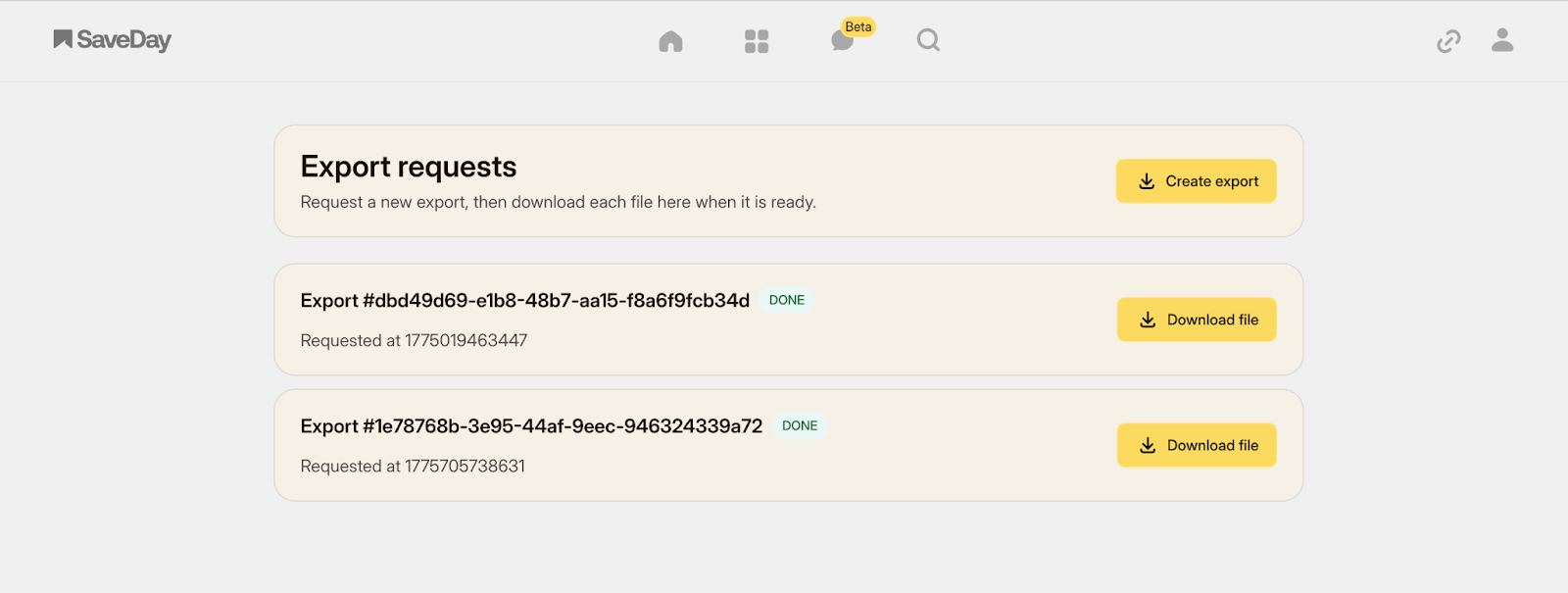
Here, you can simply click the "Create export" button to start a new request.
- Step 2: Download your files
Once you are on the Export requests page, you’ll see a list of all your previous data requests.
- Status Check: You can monitor whether a request is still processing or ready for pickup.
- Downloading: To save a copy to your device, simply click the Download file button on the corresponding item.
- Notes
Because your data is packaged as a .zip file for efficiency, some browsers (like Chrome or Edge) might flag it with a security warning. Don’t worry—this is a standard automated check for compressed files.
If your browser blocks the download, here is how to handle it:
Option A: The "Keep Anyway" method (Recommended)
If the download appears in your browser's taskbar or download menu with a warning:
- Step 1: Click the three-dot icon (options) next to the file name.
- Step 2: Select Keep.
- Step 3: If prompted again, select Keep Anyway.
Option B: Adjusting browser settings
If you are still having trouble, you can temporarily lower your browser’s security filters:
- Go to your browser Settings > Privacy and Security.
- Temporarily reduce the security level (e.g., set "Safe Browsing" to "No protection").
Important: This does not compromise your personal data, but we highly recommend reverting this setting back to its original state immediately after your download is complete.
For the latest updates and quick support, we invite you to join the SaveDay community at: https://t.me/savedotday.
Thank you for your understanding and continued support!